
How to Change Mobile Number in Absher
If you need to update your phone, you may wonder how to change mobile number in Absher. Absher provides an official way to change the registered mobile number online. You can also use an Absher self-service machine.
Your registered mobile number plays an important role in your Absher account. You may need it for verification codes and account-related services. Keeping an old number can cause problems after changing your SIM or losing access to your previous phone.
Absher also offers self-service machines that support mobile-number changes. These machines can help when you need an alternative to the online route.
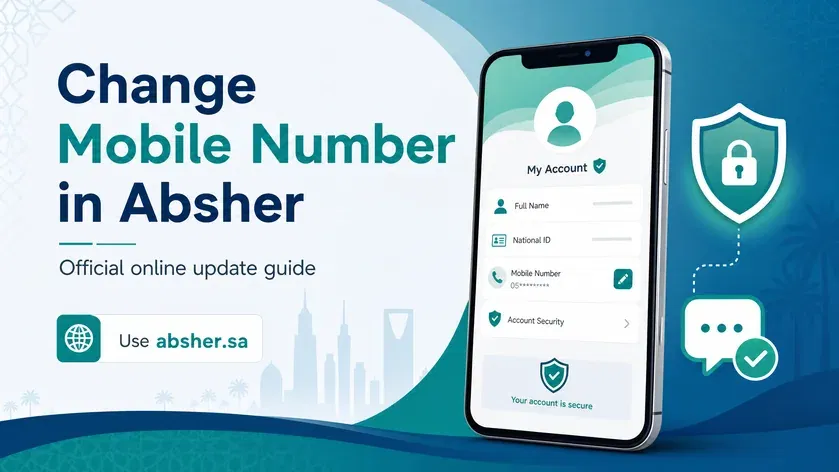
This guide explains the main ways to update your Absher mobile number. It also covers lost SIM cards, verification issues, and common problems.
We base this guide on current information from official Absher and Nafath sources. We avoid outdated instructions from older third-party guides.
For your security, use only the official Absher website or official applications. Absher also warns users never to share their usernames, passwords, or verification codes.
If you need to update your phone, you may wonder how to change mobile number in Absher. Absher provides an official way to change the registered mobile number online. You can also use an Absher self-service machine.
Your registered mobile number plays an important role in your Absher account. You may need it for verification codes and account-related services. Keeping an old number can cause problems after changing your SIM or losing access to your previous phone.
Absher also offers self-service machines that support mobile-number changes. These machines can help when you need an alternative to the online route.
This guide explains the main ways to update your Absher mobile number. It also covers lost SIM cards, verification issues, and common problems.
We base this guide on current information from official Absher and Nafath sources. We avoid outdated instructions from older third-party guides.
For your security, use only the official Absher website or official applications. Absher also warns users never to share their usernames, passwords, or verification codes.
Can You Change Your Mobile Number in Absher?
Yes. Absher provides an official Change Mobile Number service for users who need to update their registered phone number. You can use the service through the official Absher platform. Absher also lists mobile-number updates through its self-service machines.
Your best option depends on your account access and verification needs. If you can access your Absher account, start with the online service. If you need another route, an Absher self-service machine can help. Absher also supports digital identity services that connect with Nafath.
Main Ways to Change Your Absher Mobile Number
1. Absher website: Use the official Change Mobile Number service on Absher. This is the direct online option.
2. Absher self-service machine: Absher machines support mobile-number updates. They also provide identity verification services.
3. Nafath: Nafath supports digital identity services linked to Absher. This route can help with mobile-number updates and identity verification.
4. Digital identity services: Absher provides digital identity management options through its official channels. These include mobile-number changes and other account services.
The next sections explain each method, including options for users who lost their old SIM.
What You Need Before Changing Your Absher Mobile Number
Before you change your Absher mobile number, prepare the details needed for verification. Your requirements may differ based on the method you choose.
Your Absher Account
The online method requires access to your Absher Individuals account. Keep your login details ready before starting the process. Make sure you use the official Absher platform.
Your New Mobile Number
Your new number should receive SMS messages. Absher may send a verification code during the update process. Enter the number carefully to avoid verification problems.
Your National ID or Iqama
Your National ID or Iqama helps verify your identity. Keep your identification details available when using Absher or related identity services.
Access to Nafath
Nafath can provide another route for updating the mobile number linked to your Absher digital identity. You may need the Nafath app for this method.
Biometric Verification
Some mobile-number update routes use biometric verification. This can include fingerprint or other identity checks. Nafath’s official guidance includes biometric verification in its digital identity process.
Your Old Mobile Number
Your situation matters here.
If your old number still works, you can use the normal verification process when available.
If you lost your old number, you may need another verification route. Nafath or an Absher self-service machine may provide suitable options.
This distinction matters because losing your old SIM does not always mean you must abandon the update process.
How to Change Mobile Number in Absher Online
You can update your registered mobile number through your Absher account. This method works best when you can access your account and complete the required verification.
Absher allows users to edit certain personal information after login. Its official FAQ confirms that users can access “Edit User Information” and update eligible details. The platform also uses a verification code before completing certain changes.
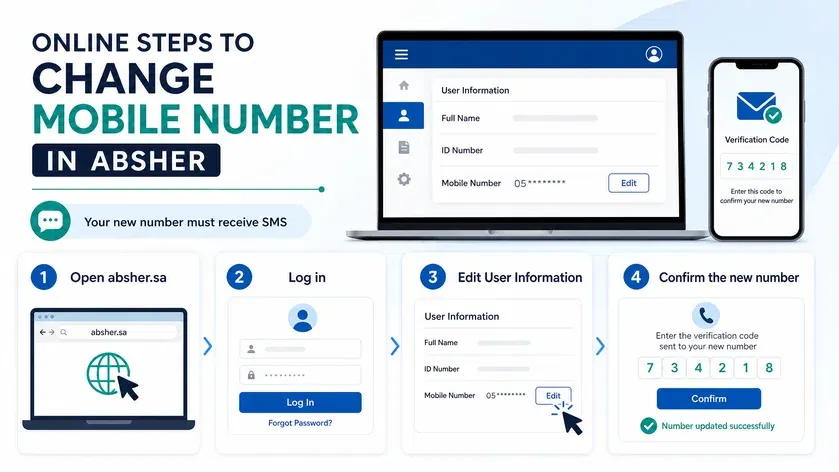
Step 1 — Open the Official Absher Website
Go to the official Absher website at absher.sa. Choose the Individuals section.
Always check the website address before entering your login details. Avoid unofficial websites that copy the Absher design.
Step 2 — Log In to Absher Individuals
Enter your Absher username or required login details. Then complete the security verification requested by the platform.
You need access to your Absher account for this online method.
Step 3 — Open User Information
After signing in, open the section for your personal or user information.
Look for the option related to Edit User Information. Absher’s official FAQ confirms this section allows users to modify eligible personal details.
Step 4 — Select Change Mobile Number
Look for the Change Mobile Number or mobile-number update option.
The exact menu wording may vary with Absher updates. Follow the option that specifically relates to changing your registered mobile number.
Do not select unrelated profile settings.
Step 5 — Enter Your New Mobile Number
Enter the mobile number you want to register with your Absher account.
Check every digit before continuing. A typing error can prevent verification or send the code to the wrong number.
Your new number should be able to receive SMS messages.
Also remember that Absher requires a separate mobile number for each individual account. Its official FAQ says one number cannot serve two different Absher accounts.
Step 6 — Complete the Verification
Follow the verification instructions shown by Absher.
The platform may send a verification code to the relevant mobile number. Enter the code exactly as received.
Do not share this code with anyone. Treat it as private account information.
If the code does not arrive, check the number and mobile signal first. Avoid repeated attempts until you confirm that the information is correct.
Step 7 — Confirm the Change
Review the new number before submitting the update.
Confirm the change through the option shown on the Absher screen. After successful completion, check your account information again.
Absher’s official FAQ states that eligible personal-information changes are saved after confirmation.
Important: Absher Menus Can Change
Absher regularly improves its digital services. Menu names and screen layouts may change after website or application updates.
For this reason, follow the current labels shown on the official Absher website. Do not rely on old screenshots from third-party websites.
If you cannot access your old mobile number, the online process may not suit your situation. In the next sections, we explain the Nafath and Absher self-service machine options for different verification scenarios.
How to Change Mobile Number in Absher Using Nafath
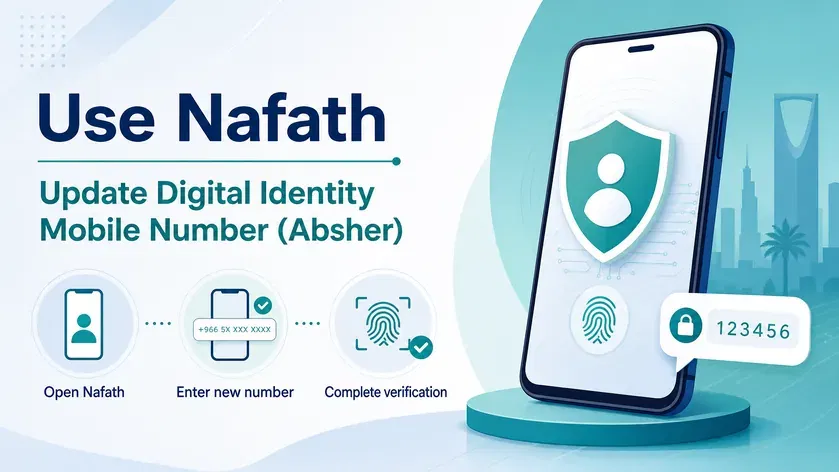
Nafath provides another official route for updating the mobile number linked to your Absher digital identity. The service appears in Nafath as Update Digital Identity Mobile Number (Absher). This option can help users who need to update their number without visiting an Absher self-service kiosk.
What Is Nafath?
Nafath is Saudi Arabia’s national digital identity platform. It supports secure identity verification for various government and private services.
The relationship is simple:
Absher → Digital Identity → Nafath
Absher provides government digital services. Nafath supports digital identity and identity verification. These systems work together for selected services.
The official Nafath guide lists a dedicated service for updating the mobile number connected to an Absher digital identity.
When Should You Use Nafath?
Nafath can be useful when you need to update the mobile number linked to your Absher digital identity.
It can also provide an alternative to visiting a self-service kiosk. The official Nafath guide describes the service as a way to update the Absher-linked mobile number remotely.
Before starting, make sure you can use the Nafath app. You should also have your identification details and new mobile number ready.
Steps to Update Your Mobile Number Through Nafath
Follow these general steps based on the official Nafath guidance:
1. Open the Nafath app
Open the official Nafath application on your phone. Make sure you use the current version.
2. Open the digital identity services
Go to the section for managing your digital identity or related self-service options.
3. Select the Absher mobile-number update service
Look for Update Digital Identity Mobile Number (Absher). Select the service to continue.
4. Enter your identification details
Enter the requested identification information. Follow the instructions shown in the Nafath app.
5. Enter your new mobile number
Type the new number carefully. Check every digit before continuing.
6. Enter the verification code
Nafath may send a verification code to the new mobile number. Enter the code shown in the message.
Never share this code with another person.
7. Complete biometric verification
Follow the biometric verification instructions in the app. Nafath uses identity verification to confirm that the request comes from the authorized user.
8. Confirm the update
Complete the final confirmation shown by Nafath. Your mobile-number update should then process through the digital identity service.
Is Nafath Better Than the Absher Website?
Neither method is universally better. The right option depends on your situation.
| Situation | Suitable route |
|---|---|
| You can access your Absher account | Absher website |
| You need a digital identity update | Nafath |
| You cannot use the normal online route | Check an Absher self-service machine |
| Biometric verification is required | Nafath or self-service machine |
Nafath is especially useful because its official documentation directly supports an Absher digital identity mobile-number update service.
If Nafath does not work for your situation, the next option is an Absher self-service machine. This route can provide another way to complete identity verification and update your registered mobile number.
How to Change Absher Mobile Number Without the Old Number
If you lost your old SIM, you may still have options to update your Absher mobile number. You should not keep requesting OTPs that go to a number you cannot access.
Absher officially confirms two important routes for changing the mobile number. You can use Change Mobile Number on the official Absher website or an Absher self-service machine.
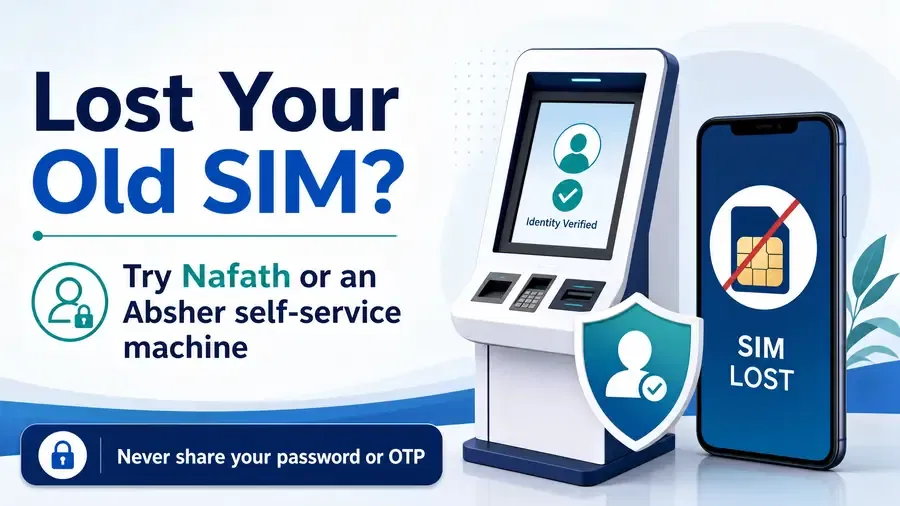
If You Lost Your Old SIM
First, determine whether you can still access your Absher account.
If you can log in, try the official Change Mobile Number service. Keep your new mobile number ready for verification.
If you cannot complete the online process, check the self-service machine option. Absher lists mobile-number changes as an available self-service function.
You should also avoid using unofficial websites that promise to change your Absher number. Absher tells users to use only absher.sa or official Absher applications.
Can You Change the Number Without Logging In?
The answer depends on your verification situation.
The normal online route requires access to your Absher account. If you cannot access the account, the self-service route may offer another option.
Absher officially lists Change Mobile Number among the services available through its self-service machines.
Do not assume that every third-party method works without login. Official Absher information does not support every workaround published online.
Use an Absher Self-Service Machine
An Absher self-service machine can help when the online method does not meet your needs.
These machines support digital identity services, including Change Mobile Number. Absher also provides a location service for its self-service machines.
You may need identity verification during the process. If the machine cannot read your fingerprint, Absher provides an official alternative. Its FAQ says you can book an appointment with Passports when fingerprint verification fails during mobile-number activation or updating.
Can Nafath Help If You Lost the Old Number?
Nafath also provides an official digital identity mobile-number update service for Absher. This gives eligible users another route to consider.
However, do not treat Nafath as a universal replacement for every Absher login problem. Your available options depend on the verification process and your account situation.
The safest approach is simple: use the official Absher or Nafath route that matches your situation.
If you cannot verify your identity through the available digital methods, use the official Absher support or service channels. Absher provides official contact information for assistance.
How to Change Mobile Number at an Absher Self-Service Machine
An Absher self-service machine provides another official way to update your registered mobile number. This option can help when the online method does not fit your situation. Absher officially lists Change Mobile Number among the services available through its self-service machines.
What Is an Absher Self-Service Machine?
An Absher self-service machine is a government service kiosk. It provides selected Absher services without requiring assistance from a service employee.
These machines also support identity verification. Available services can vary by machine and location.
If you search for an Absher kiosk near me or Absher machine near me, use the official Absher location information. Avoid relying only on unofficial location lists.
When Should You Use the Machine?
The machine can suit users who cannot complete the normal online process.
It can also help when you need an identity verification method outside the website.
Consider this route if:
- You lost access to your old mobile number.
- The online update does not work.
- You need identity verification.
- You cannot complete the digital process.
However, the exact process can vary by machine. Follow the instructions displayed on the authorized machine.
General Process
The exact screen names may change, but the process generally follows these steps:
1. Find an authorized machine
Use Absher’s official service-location information to find a suitable self-service machine.
2. Select your preferred language
Choose the language shown on the machine’s welcome screen.
3. Select the mobile-number service
Look for Change Mobile Number or the corresponding mobile-number update option.
4. Enter your identification details
Provide the requested National ID or Iqama information.
5. Complete identity verification
Follow the machine’s identity-verification instructions. The machine may require biometric verification.
6. Enter your new mobile number
Type your new number carefully. Check every digit before continuing.
7. Complete verification
Follow any OTP or biometric instructions displayed by the machine.
8. Confirm the update
Review the information and confirm the request when prompted.
What If Fingerprint Verification Fails?
Do not keep repeating the same failed fingerprint attempt.
Absher’s official FAQ addresses fingerprint problems during self-service procedures. It states that users can book an appointment with Jawazat when fingerprint verification fails at a self-service machine.
This gives you an official fallback instead of relying on unofficial workarounds.
Important: Machine menus, available services, and verification steps can change. Always follow the instructions shown on the current Absher machine.
Absher Mobile Number Change Requirements
Before changing your Absher mobile number, prepare the details needed for your chosen method. Requirements can vary between Absher, Nafath, and self-service machines.
Valid Identification
Keep your National ID or Iqama available. Absher uses identity information to identify the account holder and support secure digital services.
New Mobile Number
You need a valid mobile number for the update. Make sure the number can receive SMS messages when verification requires a code.
Enter the number carefully before confirming the request.
SMS or OTP Access
Keep access to the new number during the verification process. Absher uses verification codes for account security and identity-related actions.
Absher Account Access
The online method requires access to your Absher account. You should have your login details ready before starting.
Nafath Access
If you use the Nafath route, you need access to the Nafath app and its identity-verification process.
Biometric Verification
Some routes may require biometric verification. This can include fingerprint verification at an Absher self-service machine.
Mobile Number and Account Rules
Your mobile number also relates to your Absher account registration. Absher’s registration guidance explains how the system handles a number already linked to another account.
Absher also confirms that its self-service machines support phone-number changes.
No specific fee applies to this guide. Avoid websites that claim a mobile-number change requires an unofficial payment. Use official Absher channels for current requirements.
Why Is My Absher Mobile Number Not Changing?
Sometimes an Absher mobile-number update does not complete on the first attempt. The problem may involve verification, your old number, biometric checks, or account details. Use the steps below before trying another method.
OTP Not Received
If you do not receive the verification code, check the new mobile number first. Make sure you entered every digit correctly.
Then check your phone signal and SMS service. Wait briefly before requesting another code.
Avoid repeated requests if messages are delayed. If the problem continues, try again later or use another official verification route.
Never share an Absher OTP with anyone. Absher warns users to protect their verification codes and account credentials. (absher.sa)
Old Number Is Unavailable
If you lost your old SIM, you may not receive codes sent to that number.
Do not keep trying to verify through an inaccessible number.
Instead, check the available alternatives. Absher supports mobile-number changes through its self-service machines. Nafath also provides an official mobile-number update service for the Absher digital identity.
Fingerprint Verification Failed
A failed fingerprint scan can stop the self-service process.
Try following the machine’s instructions again. Make sure your finger is positioned correctly.
If verification still fails, Absher provides an official fallback. Its FAQ says users can book an appointment with Jawazat when fingerprint verification fails at a self-service machine.
New Number Is Already Associated With Another Absher Account
Absher does not allow one mobile number to serve multiple individual accounts. Its official FAQ confirms this account restriction.
If the system says your number is already registered, check whether another Absher account uses that number.
Nafath Verification Failed
Check that your Nafath app works correctly. Make sure your identity details match the requested information.
Complete each biometric step carefully. If the verification still fails, do not use unofficial services that promise to bypass Nafath verification.
Instead, try an official Absher route, such as a self-service machine.
Absher Service Is Temporarily Unavailable
Government platforms can sometimes experience technical issues or maintenance.
If everything looks correct, wait and try again later. Check the official Absher website for current service information.
Avoid third-party websites that claim to provide an alternative login or verification service. Use official Absher and Nafath channels for account-related actions.
Can One Mobile Number Be Used for Two Absher Accounts?
No. One mobile number cannot be registered for two different Absher accounts. Absher’s official FAQ states that each account needs its own mobile number.
This rule matters if you see an “Absher mobile number already registered” message. The number may already connect to another Absher account.
Absher’s registration page also says a private mobile number should not be used with another account.
If you want to use that number for your current account, check which Absher account currently uses it. Then follow the official Absher process to update the relevant account information.
Do not use someone else’s mobile number simply to complete registration. Absher treats the registered number as private account information.
Does the New Mobile Number Need to Be in Your Name?
Absher’s current public guidance does not clearly state a universal rule that the new mobile number must always be registered under your own name.
However, Absher treats the mobile number as private account information. Its registration guidance tells users not to use their private number with another account.
The number also plays an important role in account verification. Absher’s mobile-number update service sends a verification code to the new number during the process.
For this reason, use a number you control and can access. Avoid using a family member’s or another person’s number unless the current official process explicitly permits it.
If verification fails, check the number first. Then confirm the current requirement through official Absher support. This approach avoids relying on outdated claims from third-party websites.
Absher Mobile Number Change vs Nafath Mobile Number Update
Absher and Nafath both support mobile-number updates, but they serve different purposes. Absher manages government services and account information, while Nafath manages digital identity and identity verification.
The right option depends on your account access and verification needs.
| Feature | Absher | Nafath |
|---|---|---|
| Purpose | Absher account and mobile-number update | Digital identity mobile-number update |
| Platform | Absher website, app, or self-service machine | Nafath app |
| Identity verification | Depends on the selected route | Uses digital identity and biometric verification |
| Old number issue | Depends on your account access | May provide an alternative route |
| Official provider | Absher / Saudi Ministry of Interior | SDAIA / Nafath |
When Should You Use Absher?
Use Absher when you can access your account and want to update your registered mobile number. Absher also lists Change Mobile Number through its self-service machines.
When Should You Use Nafath?
Nafath can help when you need to update the mobile number linked to your Absher digital identity. Its official guide includes a dedicated mobile-number update service. The process uses identity and biometric verification.
Neither platform is always better. Choose the route that matches your current access and verification situation.
For security, use only official Absher and Nafath services. Avoid third-party services that promise to change your registered number.
How to Verify Your New Mobile Number Is Updated
After changing your Absher mobile number, confirm the update before leaving the service. A quick check can prevent problems later.
1. Sign In Again
Log in to your Absher account using the official Absher website or app. Make sure the account opens normally.
2. Check Your Account Information
Open your user or personal information section. Look for the registered mobile number and confirm that it shows the new number.
3. Confirm You Receive Verification Codes
When Absher requests verification, check whether the code reaches your new mobile number. Never share the OTP with anyone.
4. Test an Absher Service
Use a relevant Absher service that requires verification. This can help confirm that your new number works correctly.
If the new number appears correctly and receives verification messages, you do not need to change it again. Keep your number updated to avoid future access problems.
Security Tips After Changing Your Absher Number
Changing your Absher mobile number also means reviewing your account security. Your new number may receive important verification codes and account messages.
Never Share Your OTP
Never give your Absher OTP to another person. Treat every verification code as private account information.
Protect Your Absher Password
Never share your Absher password with friends, agents, or unknown callers. Absher warns users not to disclose their usernames or passwords.
Do Not Approve Unknown Nafath Requests
Never approve a Nafath authentication request that you did not start yourself. An unexpected request could indicate someone is attempting to access a service using your identity.
Use Official Absher Channels
Use the official absher.sa website and official Absher applications. Avoid websites that imitate the Absher login page. Absher recommends using its official channels for account services.
Avoid Unofficial APK Files
Download Absher and Nafath apps only from trusted, official app stores. Avoid modified APK files from unknown websites.
Be Careful With SMS Links
Do not open suspicious links in messages claiming to be from Absher. Check the sender and destination before taking action.
Check the Website Address
Before entering your credentials, confirm that you are using the official Absher domain. Small changes in a website address can indicate a phishing site.
These simple precautions can help protect your Absher account, digital identity, and personal information.
Frequently Asked Questions
How do I change my mobile number in Absher?
Log in to the official Absher platform and open your user information. Select the Change Mobile Number option and follow the verification steps. Absher also provides mobile-number changes through its self-service machines.
Can I change my Absher number online?
Yes. Absher provides an online mobile-number change service for users who can access their accounts. You can also check other official routes if the online method does not suit your situation.
Can I change my Absher mobile number without the old number?
You may have other options if you cannot access your old number. Absher self-service machines support mobile-number changes. Nafath also provides an official service for updating the mobile number linked to your Absher digital identity.
Can I change my Absher number through Nafath?
Yes. Nafath provides an Update Digital Identity Mobile Number (Absher) service. The process uses digital identity verification and biometric checks.
Can I change my number through an Absher machine?
Yes. Absher officially lists Change Mobile Number among the services available through its self-service machines. The exact steps can vary by machine and current interface.
What if I lost my SIM registered with Absher?
Do not keep requesting OTPs sent to your lost number. Check whether you can access your Absher account first.
If the online method does not work, consider an Absher self-service machine or the Nafath digital identity route. Your available option depends on the verification process.
Why am I not receiving the Absher OTP?
First, check that you entered the new number correctly. Then check your mobile signal and SMS service.
Wait briefly before requesting another code. If the problem continues, try again later or use another official verification route.
Never share an OTP with anyone. Absher warns users to protect their verification codes.
Can I use the same mobile number for two Absher accounts?
No. Absher does not allow one mobile number to register two different accounts. Its official FAQ confirms this restriction.
If Absher says your number is already registered, check which account currently uses that number.
What should I do if Absher fingerprint verification fails?
Follow the instructions shown on the self-service machine and try the verification again.
If fingerprint verification continues to fail, Absher’s FAQ provides an official fallback. It states that users can book an appointment with Jawazat after fingerprint verification fails at a self-service machine.
How long does it take for the new number to update?
Do not rely on a fixed processing time unless Absher confirms one for the current service.
After completing the change, check your account information. You can also confirm that the new number receives future verification messages.
Can I change my Absher mobile number from outside Saudi Arabia?
The answer depends on the route available to you. Online digital services may allow remote access, while some verification methods may require a self-service machine or biometric verification.
If you are outside Saudi Arabia, check the current Absher and Nafath requirements before starting. Do not rely on older third-party instructions, as service availability and verification procedures can change.